Get notified of new conversations
Ping your support role, or yourself, every time a visitor starts a chat.
How it works
Each visitor conversation opens a thread in your Discord server. With /notifications, you choose a role or a member to ping when that happens. Every new conversation then:
- is announced in its channel with a mention, the visitor's name, the ticket number and the website they're on,
- opens its thread right under that message, so one click takes you to the conversation,
- sends a Discord notification to the people mentioned, on desktop and on their phone.
Set it up in 2 minutes
You need the Manage Server permission in your Discord server. Deskcord must already be installed, with a destination channel set (see /set-destination-channel).
1. Pick who to ping
Working alone? Ping yourself: skip to step 2 and pick your own name.
Working as a team? Ping a role, so everyone who answers visitors is notified and you can add or remove people without touching Deskcord. If you don't have one yet, create it:
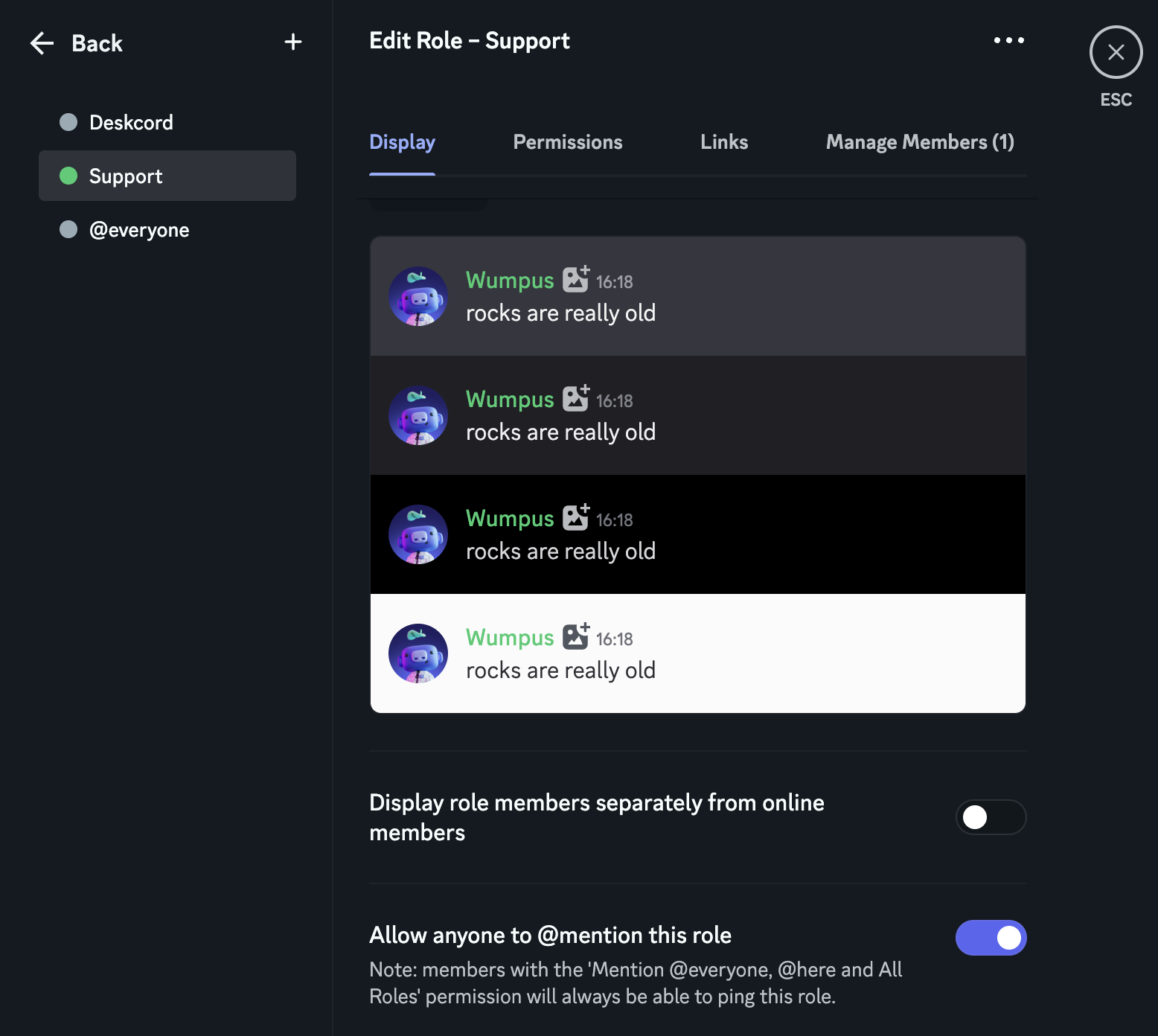
- Open Server Settings → Roles and click Create Role.
- Name it, for instance
Support. - In the role's Display tab, turn on Allow anyone to @mention this role. Without it, Deskcord can't ping the role unless you give the bot the "Mention @everyone, @here, and All Roles" permission.
- In the Manage Members tab, add your teammates.
2. Run /notifications
In any channel of your server, type:
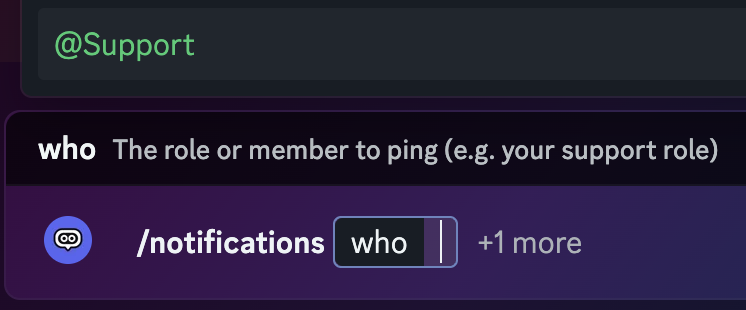
/notifications who:@SupportPick the role, or a member, from the list Discord shows when you type who:. The reply is visible only to you and confirms that notifications are on.
3. Check the setup
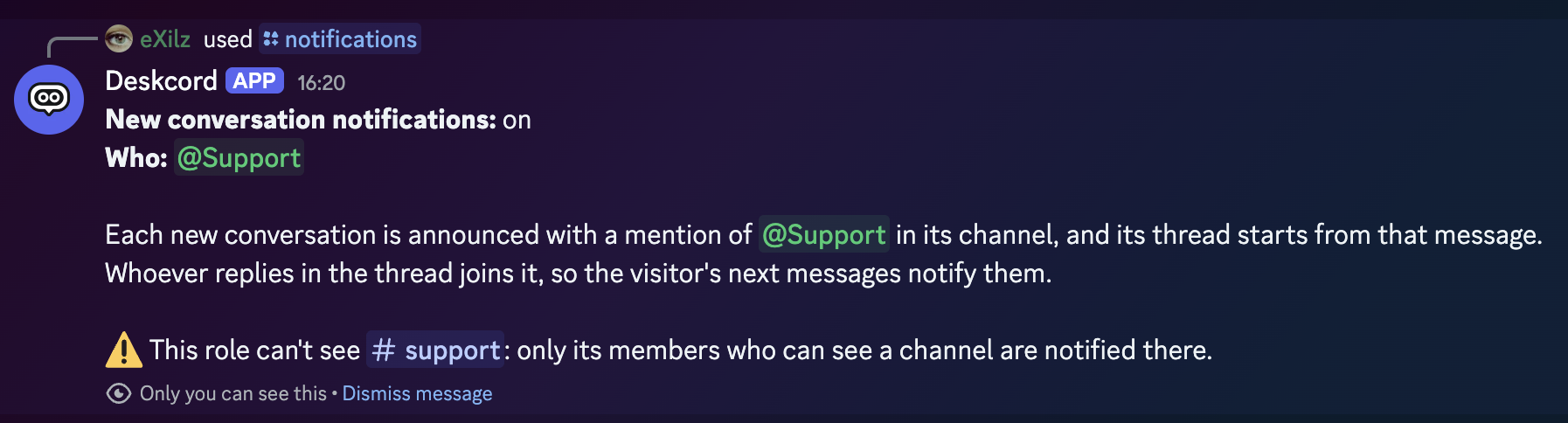
Run /notifications without options at any time. It shows whether notifications are on and who gets pinged, and warns you when something will stop the ping from reaching people:
- the role or member can't see one of the channels conversations open in,
- the role isn't mentionable and the bot doesn't have the permission to mention all roles,
- the role was deleted, or the member left the server.
Then open the chat widget on your website and send a test message. The announcement should appear in your channel within a second.
What your team sees
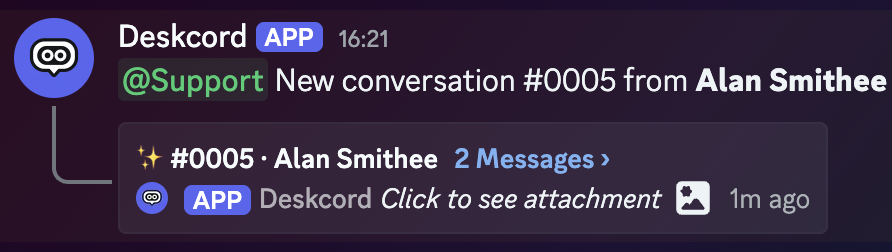
When a visitor sends their first message, Deskcord posts this in the conversation's channel:
@Support New conversation #0012 from Jane on shop.example.com- #0012 is the ticket number, also in the thread name and in
/customer-info. - Jane is the name the visitor entered, or the name your website passed with
identify(). - shop.example.com is the website the chat was opened on. It's left out when Deskcord can't tell.
The conversation's thread hangs under that message. Click it to open the conversation: the first message in the thread is the usual summary (name, email, ticket number), followed by the visitor's message. Reply there as usual.
Follow-up messages
The ping covers the start of a conversation. For the messages that follow, Deskcord relies on how Discord threads work: Discord notifies the members of a thread of every new message in it, and you become a member when you reply.
So once a teammate answers, the visitor's next messages notify them, without anything to set up. Until someone replies:
- the announcement and its thread stay at the bottom of the channel,
- the thread shows a new-message badge when the visitor adds something,
- anyone can open the thread, click … in its header and choose Join Thread to be notified without replying yet.

To stop following a conversation someone else took over, use Leave Thread in the same menu. When the conversation is resolved with /resolve-conversation, the thread is locked and stops notifying anyone.
Several websites (Pro)
On Pro, each website can open its conversations in its own channel (/set-allowed-domains). The announcement is posted in the channel the conversation opens in, so your team sees it next to the website's other conversations.
The same role or member is pinged for every website. To split who handles which website, give each website's channel its own permissions: a member who can't see a channel isn't notified of the conversations opening there, even if they have the role.
Change or turn off notifications
- Ping someone else:
/notifications who:@NewRole. Only one role or member can be pinged: use a role to notify several people. - Pause the pings:
/notifications enabled:false. Nobody is pinged for new conversations, and Deskcord remembers who to ping. - Turn them back on:
/notifications enabled:true. - Check the current setup:
/notifications.
Changes apply to conversations that start afterwards. Open conversations keep their thread.
Command reference
/notifications [who] [enabled]Both options are optional. Without any, the command shows the current setup. Only members with the Manage Server permission can use it.
| Option | Type | What it does |
|---|---|---|
who | Role or member | Who to ping when a conversation opens, such as your support role. Choosing someone turns the pings on and replaces whoever was set before. @everyone and bots can't be picked. |
enabled | True or false | false stops the pings and keeps who, so true turns them back on as they were. On by default once someone is picked. |
Get notified on your phone
The announcement is a regular Discord mention, so it reaches you wherever Discord does. On your phone:
- Install the Discord app and log in.
- Allow Discord to send notifications in your phone's settings.
- In Discord, open your server's Notification Settings and make sure Suppress All Role @mentions is off if you're pinged through a role. Mentions still come through when the server is muted.
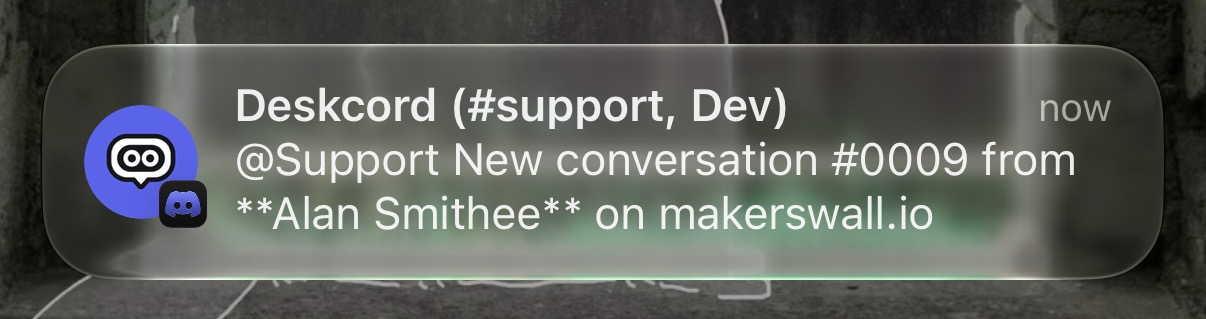
Tap the notification to open the channel, then the thread, and reply from the app.
Troubleshooting
The conversation opened, but nobody was pinged
- Run
/notificationsand check that notifications are on, and read its warnings. - If you ping a role, make it mentionable (step 1) or give Deskcord the "Mention @everyone, @here, and All Roles" permission in the channel.
- Check that Deskcord can send messages in the channel. If it can't post the announcement, the conversation still opens, without the ping.
Some teammates are pinged, others aren't
Those not notified probably can't see the channel the conversation opened in, or have Suppress All Role @mentions turned on in the server's notification settings. Check their Discord notification settings on their phone too.
I'm not notified when the visitor writes again
Discord only notifies members of a thread. Reply in the thread, or click Join Thread, and the visitor's next messages will notify you (see Follow-up messages).
I can't pick @everyone
Pinging the whole server for each conversation isn't supported. Create a role for the people who answer visitors instead (step 1).
The /notifications command doesn't show up
It's only offered to members with the Manage Server permission. If you have it, restart Discord (Ctrl/Cmd + R) to refresh its list of commands.
Stuck somewhere?
Open the chat on this page, we'll help you set it up.
Back to Help & Documentation