Get started with Deskcord
From zero to your first conversation in about 5 minutes.
What you'll do
Deskcord puts a chat widget on your website and opens a Discord thread for each conversation, so your team answers visitors from Discord, on desktop or on their phone. Visitors don't need a Discord account.
- Add the Deskcord bot to your Discord server.
- Pick the channel where conversations open.
- Paste the widget on your website.
- Send yourself a test message.
1. Add Deskcord to your Discord server
You need the Manage Server permission on the server, which you have if you created it. No server yet? Creating one is free: click + at the bottom of your server list in Discord, then Create My Own.
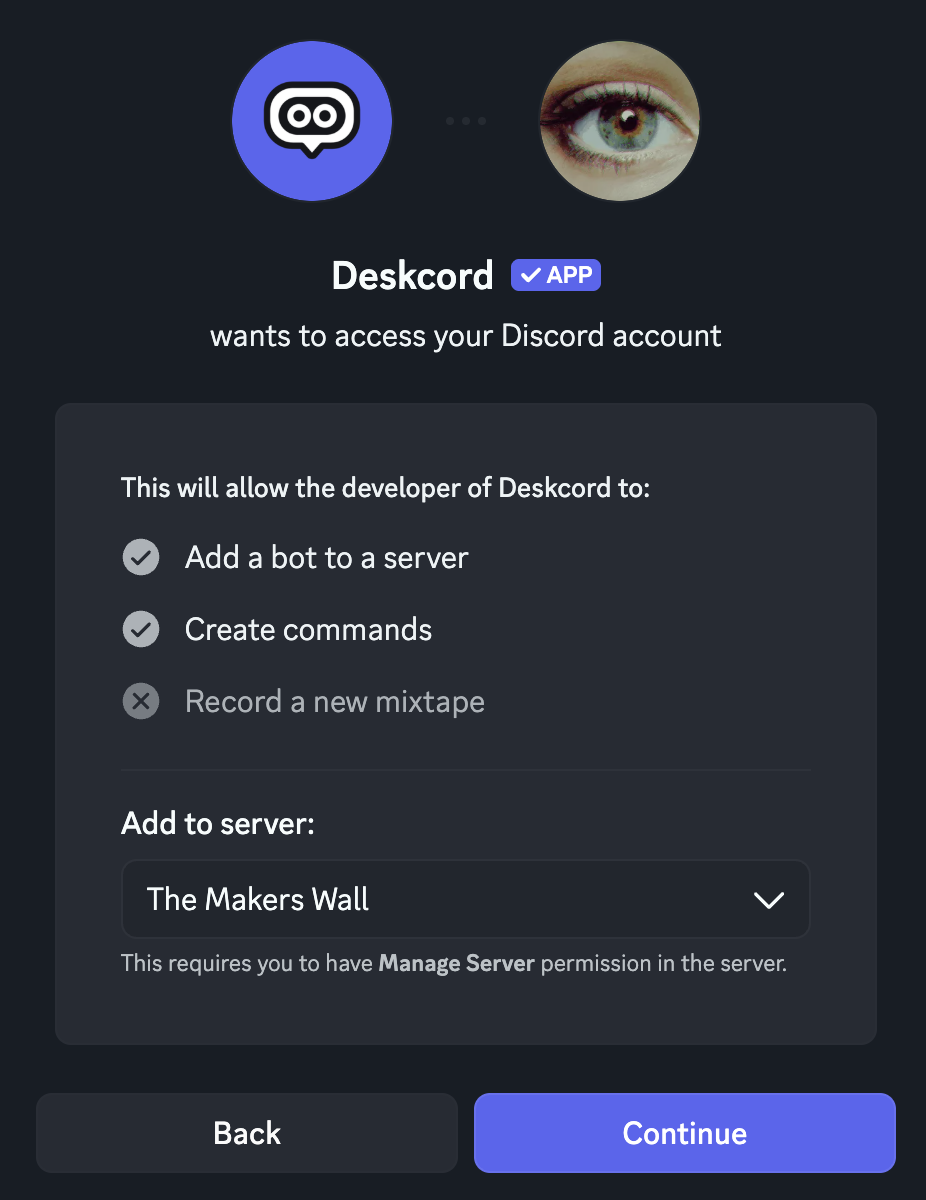
Discord asks which server to add Deskcord to: pick yours under Add to server and click Continue. Discord then lists the permissions Deskcord needs: keep them all checked and click Authorize.
Deskcord then sends you a welcome message in Discord, with your widget code already filled in. It's posted in your server if your DMs are closed.
2. Pick where conversations go
Each visitor conversation opens a thread in one channel of your server. In that channel, run:
/set-destination-channelThe reply tells you if Deskcord is missing a permission there.
#support channel, opened to a Support role: conversations include visitors' names and emails, and everyone who can see the channel can read them. The Discord server setup guide walks you through it. You can use any channel to try Deskcord now, and switch later.3. Add the widget to your website
In any channel of your server, run /setup. The reply, only visible to you, contains your widget code with your app ID:
<script>
  window.deskcord = {
    settings: { app_id: "YOUR_APP_ID" },
  };
</script>
<script src="https://cdn.deskcord.chat/deskcord.min.js"></script>
Paste it at the end of the <body> of every page where the chat should appear: usually your site's shared layout or footer. The widget shows up as a chat bubble in the bottom-right corner.
Let an AI coding assistant do it
Click Get the AI setup prompt under the /setup reply: it gives you instructions with your app ID filled in. Paste them into Claude Code, Cursor, Codex or any assistant that can open your website's code, and it adds the widget for you. Here is the same prompt, to paste your app ID into yourself:
Where to paste it
- WordPress: Paste the snippet in your theme's footer.php, right before </body>, or in the footer box of a plugin like WPCode.
- Shopify: Online Store → Themes → … → Edit code → layout/theme.liquid, right before </body>.
- Webflow: Site settings → Custom code → Footer code, then publish your site.
- Next.js, React, Vue…: Use the npm package from a client-side component that renders on every page, such as your root layout.
// npm install deskcord
// Client side only, once: settings first, then load the widget
window.deskcord = {
  settings: { app_id: "YOUR_APP_ID" },
};
import("deskcord");
Load it in the browser only, never during server-side rendering. The settings must exist before the import.
4. Send a test message
- Open your website and click the chat bubble.
- Type a message and send it. The widget asks for a name and an email the first time.
- In Discord, a thread named
✨ #0001 · your nameappears in your channel, starting with a summary of who's writing. - Reply in the thread: your answer shows up in the widget right away.
It works on localhost too, so you can try it before going live. When you're done, close the test with /resolve-conversation in the thread.
Your plan
Free includes 30 new conversations per month, counted when a visitor starts one: messages in an open conversation never count. Run /usage to see where you stand. Deskcord sends you a DM at 80% and 100% of the limit.
Need more? Pro removes the limit and adds several websites, reply emails, customer details and custom colors, for $4.99 per month or $39.99 per year. Run /subscribe in Discord to upgrade.
Troubleshooting
The chat bubble doesn't show up
- Check that both
<script>tags are on the page, in that order, and that the app ID is the one from/setup. - Hard-refresh the page (Ctrl/Cmd + Shift + R).
- If you use
/set-allowed-domains, check the page's domain is in the list. - Turn off ad or script blockers for your site while testing.
The message doesn't reach Discord
Run /set-destination-channel again in your channel and fix any permission it reports. Deskcord needs to see the channel, send messages and create threads there.
I can't find the welcome message
Run /setup in your server: it gives you the same widget code at any time.
Next steps
Deskcord works. Now make it fit your team:
Set up your Discord server
A Support role and a private channel for your conversations: the setup we recommend, in five minutes.
Read the guide →3Get notified of new conversations
Ping your Support role, or yourself, every time a visitor starts a chat. On desktop and on your phone.
Read the guide →4Make it yours
Your texts, position, theme and colors, the websites the widget works on, and what Pro adds.
Read the guide →Stuck somewhere?
Open the chat on this page, we'll help you set it up.
Back to Help & Documentation