Set up your Discord server for support
One role, one private channel, five minutes. Here's the setup we recommend.
The setup at a glance
Deskcord opens a thread for each visitor conversation in a channel of your Discord server. Whoever can see that channel can read the conversations, with the visitor's name and email, and reply to them. So the setup comes down to two things:
🔒 #support
A private channel where conversations open. Only the Support role and Deskcord can see it.
@Support
A role for everyone who answers visitors. It opens the channel to them and is pinged for new conversations.
It works the same whether you create a server just for support or add support to the server where your community already hangs out. On a community server, the private channel keeps visitor conversations away from your members.
1. Create a Support role
- Open Server Settings → Roles and click Create Role.
- Name it
Support, and pick a color if you like: it shows on your teammates' names. - In the Display tab, turn on Allow anyone to @mention this role, so Deskcord can ping it when a conversation starts.
- In the Manage Members tab, add the people who answer visitors.
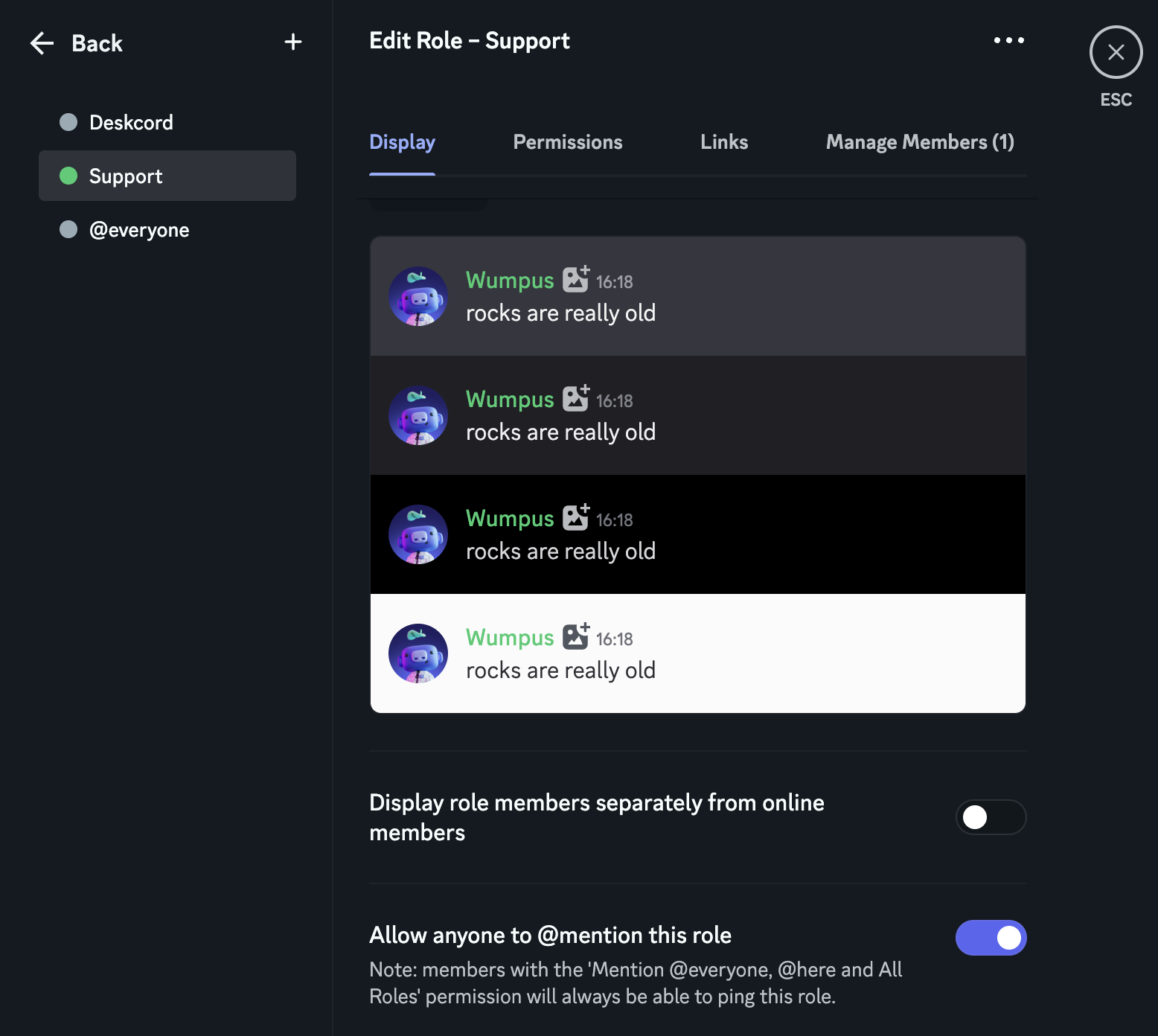
The role doesn't need any special permission: access to the channel is set on the channel itself, in the next step.
2. Create a private #support channel
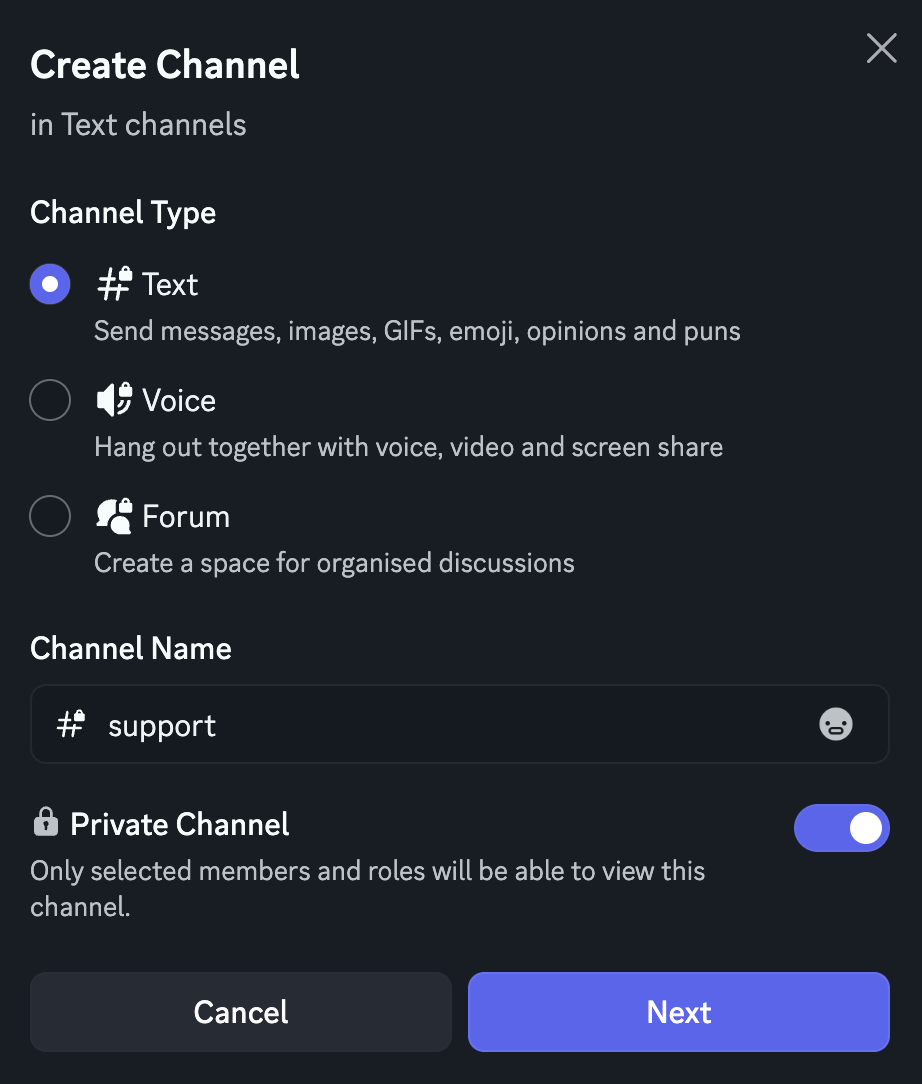
- Click + next to Text Channels in your channel list.
- Choose Text, name it
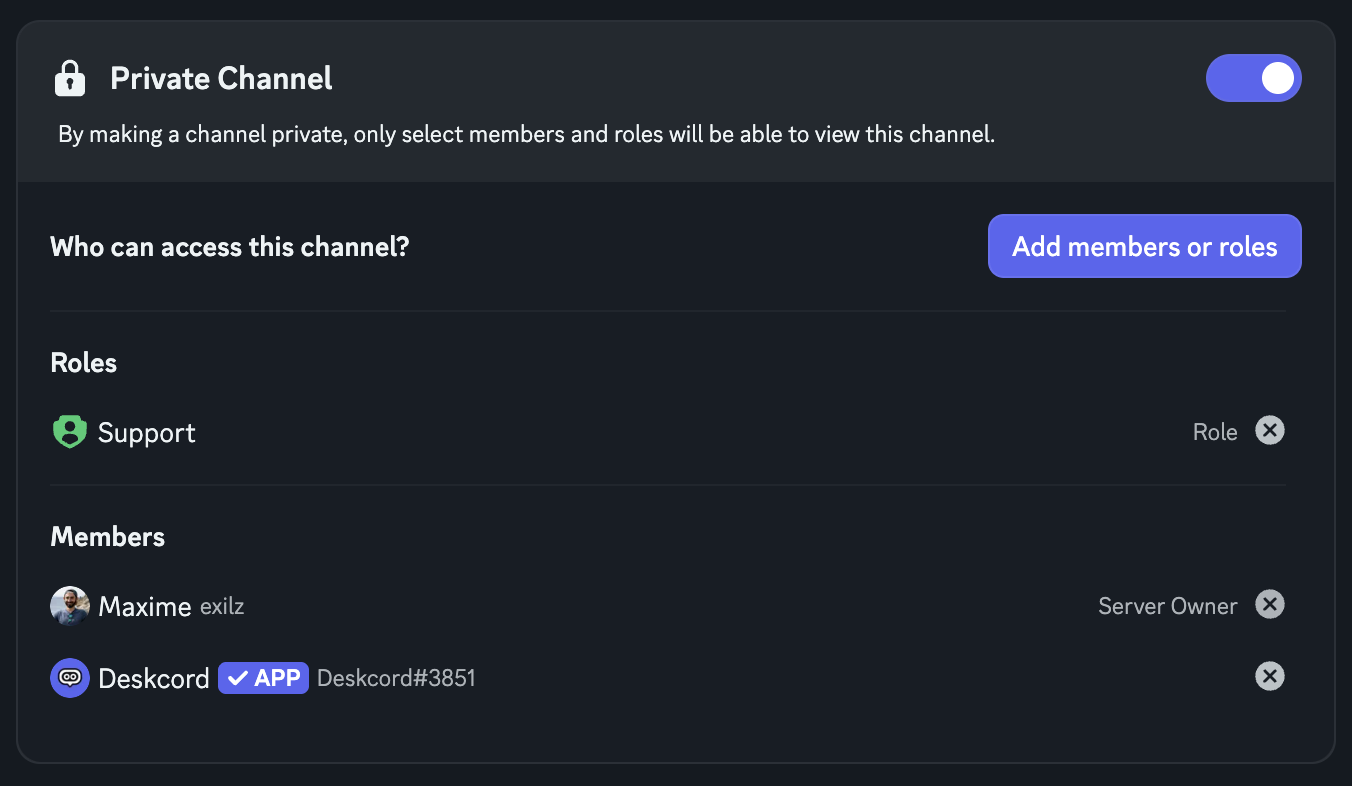
supportand turn on Private Channel. Click Next. - Add the Support role and Deskcord, then click Create Channel.
3. Check Deskcord's permissions
Deskcord gets its permissions when you add it to your server. In the channel, it needs:
- View Channel
- Send Messages
- Create Public Threads
- Send Messages in Threads
- Read Message History
- Embed Links
- Attach Files
Manage Threads is recommended too: it lets Deskcord close and rename threads when a conversation is resolved.
You don't have to check them one by one: the next step tells you if anything is missing. To change them, open the channel's settings (the gear next to its name) → Permissions, and select Deskcord.
4. Send conversations to #support
In #support, run:
/set-destination-channelNew conversations now open in this channel. If Deskcord is missing a permission there, the reply lists it. Conversations already open stay in their thread.
Optional: lock the widget to your website
Your embed code is visible in your website's source, so anyone could copy it to their own site and send conversations to your server. To prevent that, list your website:
/set-allowed-domains add domain:yourwebsite.comThe widget then only works on the domains in the list. www.yourwebsite.com is a separate domain: add it too if your site answers on both. Development domains such as localhost always work. Free covers one website.
Deskcord Pro
Several websites? Give each one its own channel
When you run a store, a SaaS and a blog, mixing all their visitors in one channel gets messy fast. On Pro, each website sends its conversations to a channel of its own:
🔒 #support-shop ← shop.example.com
🔒 #support-app ← app.example.com
🔒 #support ← everything else
- Know where a visitor comes from before you even open the conversation.
- Split the work: give each channel its own role, and only the right people see, and are pinged for, each website's conversations.
- Mute what can wait, like the blog, and keep notifications for the store.
Set it up with one command per website: /set-allowed-domains add domain:shop.example.com channel:#support-shop. Websites without their own channel keep using #support.
Pro also removes the 30-conversation monthly limit, emails visitors the replies they missed, shows customer details from your website in Discord, and lets you pick the widget's colors. It's $4.99 per month or $39.99 per year, for your whole team.
Or run /subscribe in your Discord server.
What it looks like
Once everything is in place, each conversation shows up in #support as a message with its thread attached. With notifications on, that message pings your Support role.
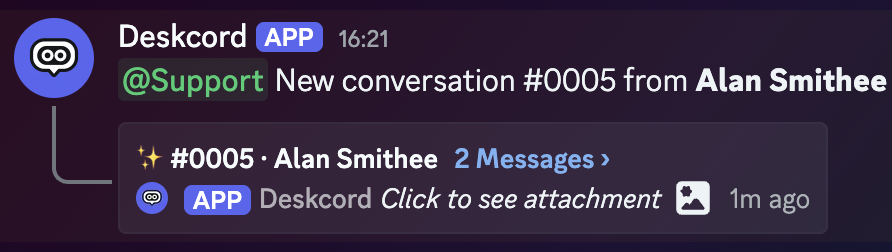
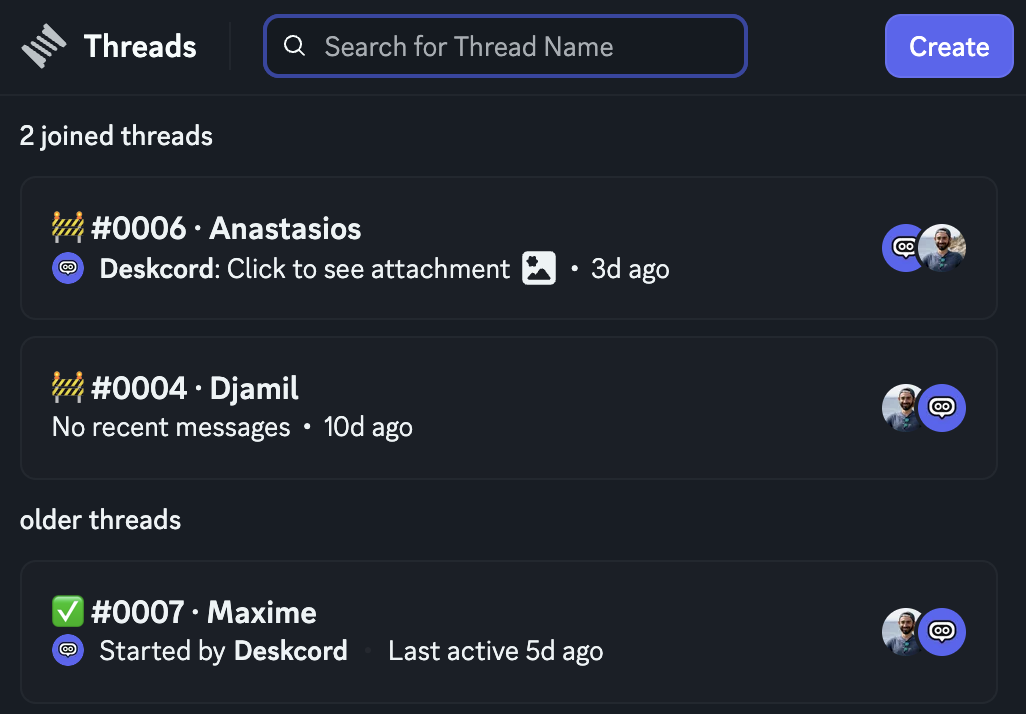
The emoji in front of each thread's name tells you where it stands:
- ✨ new: nobody from your team has replied yet,
- 🚧 in progress: your team replied,
- ✅ resolved with
/resolve-conversation.
Click Threads at the top of the channel to see every open conversation in one list.
Good habits
- Resolve conversations when they're done with
/resolve-conversationin the thread. The visitor sees it as completed, and your thread list stays short. - Check who you're talking to with
/customer-infoin the thread: name, email, ticket number, and whether the user is verified. - Choose how visitors see you. The widget shows your display name and avatar on this server. Set a support identity with Discord's server profiles without changing your profile everywhere else.
Next steps
Get notified of new conversations
Ping your Support role, or yourself, every time a visitor starts a chat. On desktop and on your phone.
Read the guide →4Make it yours
Your texts, position, theme and colors, the websites the widget works on, and what Pro adds.
Read the guide →5Identify your logged-in users
Your users skip the intro form, show up with their name and avatar, and find their conversations on every device.
Read the guide →Troubleshooting
/set-destination-channel says permissions are missing
Deskcord probably wasn't added to the private channel. Open the channel's settings → Permissions, click Add members or roles, pick Deskcord, and allow the permissions the reply listed. Then run the command again.
A teammate can't see the conversations
Give them the Support role, or check that the role is in the channel's Permissions list. On Pro, check each website's channel too.
Conversations still open in another channel
Run /set-destination-channel again inside #support. On Pro, websites with their own channel keep using it: /set-allowed-domains list shows which channel each website uses.
Members of my community can read the conversations
The channel isn't private. Open its settings → Permissions, turn on Private Channel, and make sure only the Support role and Deskcord are in the list.
Stuck somewhere?
Open the chat on this page, we'll help you set it up.
Back to Help & Documentation